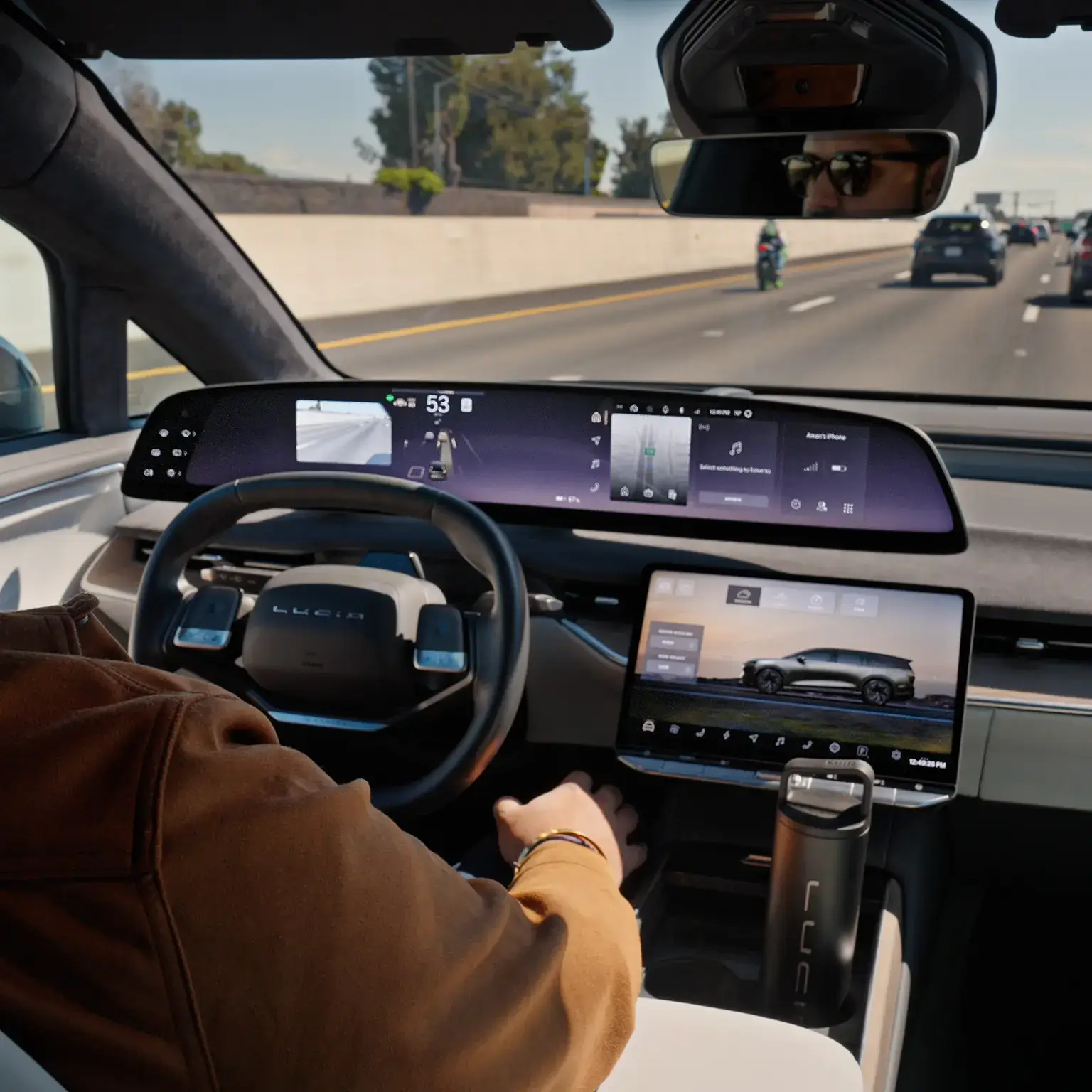
DreamDrive™ 2 for Lucid Gravity
DreamDrive 2 at a Glance
DreamDrive 2¹ is your Lucid Gravity’s ultra-intuitive advanced driver assistance system (ADAS). DreamDrive 2 is a suite of driving features that Lucid continuously develops and enhances to help keep you safer and more confident behind the wheel. DreamDrive 2 uses an advanced suite of sensors and cameras, with 23 in DreamDrive 2 Premium and 34 in DreamDrive 2 Pro, to:
Monitor your vehicle’s surroundings
Help you complete tricky tasks, like maneuvering and parking in tight spaces
Enhance your awareness and driving skills
Help prevent or reduce the severity of accidents
Many of your vehicle’s most powerful DreamDrive 2 features are always on, serving as your invisible co-pilot whenever you’re on the road. Others, like Drive Assist² or Auto Park, are there for you to activate when and where you need them (and when conditions allow). DreamDrive 2 enhancements are delivered to your vehicle via over-the-air software updates.
Note that DreamDrive 2 enhances vehicle safety but does not replace attentive, responsible driving. You are always responsible for keeping yourself and other road users safe, but DreamDrive 2 makes it easier, more comfortable, and more fun to drive your Lucid Gravity.
You can change your settings to customize how DreamDrive 2 reacts while you drive. To view your settings and configure them to your preferences, go to Settings > DreamDrive 2 on the Pilot Panel.

DreamDrive 2 Versions: How Are They Different?
Lucid Gravity’s DreamDrive 2 is offered in two versions: DreamDrive 2 Premium and DreamDrive 2 Pro. Both versions come with a suite of standard ADAS features described on this page, including Adaptive Cruise Control, Auto Park, Lane Departure Protection, and more. Both levels also periodically receive over-the-air updates that deliver enhanced capabilities and improvements, so DreamDrive 2 gets even better over time. However, DreamDrive 2 Premium and DreamDrive 2 Pro offer different levels of features. Here’s how they differ:
Level
Description
Features
DreamDrive 2 Premium
- 23 sensors and cameras
- Base level in Lucid Gravity
- Adaptive Cruise Control
Extended Stop & Go
Active Curve Speed Control
Auto Set Speed - Speed Limit Alert
- Posted Speed Update Alert
- Traffic Drive-off Alert
- Traffic Sign Recognition
- Drive Assist (L2)
- High Beam Assist
- Automatic Emergency Braking with Intersection Assist
- Lane Departure Protection
- Blind Spot Protection
- Safe Exit Protection
- Front and Rear Cross Traffic Protection
- Rear Pedestrian Collision Protection
- Surrounding Object Visualization
- Lane Change Assist
- Adaptive Lane Biasing
- Speed Based Suggested Lane Change
- Adaptive Driving Beam
- Park Distance Warning
- Rear Parking Protection
- Distracted Driver Alert
- Drowsy Driver Alert
- Rear View Monitoring
- Surround View Monitoring
- See-through Vehicle Display
- Blind Spot Display
- Automated Park In/Out
- Rear View Display
DreamDrive 2 Pro
- 34 sensors and cameras
- Lucid Gravity’s most advanced ADAS level with semi-autonomous driving features
- This is an optional feature
Includes all features of DreamDrive 2 Premium, plus:
- Hands-Free Drive Assist (L2+)
- Automatic Lane Change
- Enhanced Surrounding Object Visualization
- Driving Styles options
DreamDrive 2 Driver Assistance Controls
You’ll find the buttons for controlling your DreamDrive 2 driver assistance features on the left side of your steering wheel, so you can activate, adjust, and deactivate these features with one hand.

DreamDrive 2 Button. Activates or deactivates DreamDrive 2’s driver assistance features. Configure whether you want this button to activate Drive Assist (when available) by default or Adaptive Cruise Control. If Adaptive Cruise Control is set to enable by default, you can press this button again to switch to Drive Assist.
Cancel. Turns all driver assistance features completely off.
Decrease Speed. Press to decrease your speed by 1 mile or kilometer per hour. Press and hold to adjust in 5 mile or kilometer per hour increments.
Decrease Following Distance. Press to decrease your following distance, or time gap setting, so that there is less distance between you and the vehicles in front of you.
Set/Update Speed. Press to set or update your speed to your current speed.
Increase Speed. Press to increase your speed by 1 mile or kilometer per hour. Press and hold to adjust in 5 mile or kilometer per hour increments.
Increase Following Distance. Press to increase your following distance so that there is more distance between you and the vehicles in front of you.
Driving Styles for DreamDrive 2 Pro
You can select a driving style for your DreamDrive 2 driver assistance features that matches your personal comfort behind the wheel. Conservative will give you smoother, gentler maneuvers and fewer lane changes, particularly in heavy traffic, while Assertive will give you more frequent, decisive maneuvers and more frequent lane changes (Automatic Lane Changes reserved for DreamDrive 2 Pro only). No matter which style you select, your vehicle will always operate your driver assistance features safely and change lanes only when it is safe to do so.

DreamDrive 2 Features for Lucid Gravity
The features described below are available in DreamDrive 2 Premium, apart from Hands-Free Drive Assist, Automatic Lane Change, and Enhanced Surrounding Object Visualization, which are reserved for DreamDrive 2 Pro (View DreamDrive 2 Premium vs Pro features). DreamDrive 2 Pro must be added to your vehicle at the time of purchase, it is not possible to install the necessary hardware after delivery. Some features are not available in certain regions. See your Owner’s Manual for the most up-to-date information about the DreamDrive 2 features in your vehicle.
Driver Assistance Features
DreamDrive 2 helps you focus on the road by actively assisting you with certain driving tasks, including maintaining a safe speed and following distance, staying in your lane, parking, and more.

Hands-Free Drive Assist³ is a Level 2 ADAS feature that is proprietary to Lucid. It is powered by both software and advanced sensors integrated seamlessly into your vehicle. Hands-Free Drive Assist is a suite of features that work together on certain roads to make Lucid Gravity even easier and more fun to drive. When available, activate Hands-Free Drive Assist to help you steer and keep your vehicle centered in the driving lane without touching the steering wheel. When it detects forward vehicles in your lane, it adjusts your speed to maintain a safe distance, which you can configure using the Following Distance Buttons.
Active Curve Speed Control slows your vehicle automatically when driving in a curve, then resumes your previously set speed, even when hands-free driving isn’t available. If traffic comes to a stop while Hands-Free Drive Assist is active, Extended Stop & Go will automatically resume Drive Assist for you when traffic starts moving again. If lane markings are difficult to detect due to traffic, built-in Traffic Jam Assist lets you use hands-on Drive Assist by following the vehicle in front of you. Hands-free features are reserved for DreamDrive 2 Pro. Drivers must remain alert at all times. If hands-free features are unavailable, hands-on Drive Assist will still be available.

Hands-Free Lane Change Assist³ helps you move into an adjacent lane on certain roads when Hands-Free Drive Assist is active. To initiate a lane change, signal in the direction of the lane you want to drive into. Your vehicle will move into that lane if and when it is safe to do so, without you having to turn the steering wheel. It's also allowed with Hands-on Drive Assist when the vehicle is driving on certain highways. Lane Change Assist availability is indicated on the cockpit panel by dotted lines adjacent to your vehicle, while Lane Change Assist unavailability is shown by a solid line.
You can configure how sensitive you want your turn signal stalk to be: select Short Activation to initiate a hands-free lane change by simply pressing down or up on the stalk or Long Activation to require that you press and hold the stalk.
Automatic Lane Change allows your vehicle to change lanes for you to overtake a slow vehicle in front when it's safe to do so, without requiring driver input to the turn signal stalk. If the lane change involves moving into the last passing lane, your vehicle will also move back into your original lane when safe to do so.
Enable Use HOV Lanes to allow your vehicle to use high-occupancy vehicle (HOV) lanes, also known as carpool lanes, when executing lane-change maneuvers. Remember to follow all local rules for using HOV lanes and disable this feature if you do not meet them, for example if you are driving by yourself.

Adaptive Lane Biasing automatically shifts your vehicle within the driving lane to add space between your vehicle and other higher-risk vehicles, like trucks and motorcycles, when Drive Assist is on.


Adaptive Cruise Control
Maintains your vehicle’s speed and uses real-time data from exterior sensors to detect vehicles in front of you. When a slower vehicle is detected, it automatically adjusts your speed to match, ensuring that you maintain a safe following distance. This distance can be adjusted to your preference using the Following Distance Buttons on the steering wheel. When the vehicle is no longer detected, your vehicle will resume your original set speed. Adaptive Cruise Control will also adjust your speed automatically when driving on curved roads to maintain a safe lane position when Curve Speed Control is enabled. If traffic comes to a stop while Adaptive Cruise Control is active, Extended Stop & Go will automatically resume acceleration for you when traffic starts moving again.
Your Cruising Speed settings include a Speed Limit Offset. When you set your cruising speed with an offset, it will automatically set your speed to the posted speed plus or minus your selected offset.


Safety Warnings and Protections
DreamDrive 2 warnings alert you to potential dangers so that you can take appropriate action. DreamDrive 2 protections can either intervene on your behalf or amplify your actions, like steering or braking, to attempt to avoid or reduce the severity of a collision.


Distracted Driver Alert
Distracted driving can have dire consequences. This feature uses your vehicle’s driver camera to detect whether your eyes are on the road. If the camera senses you are looking away too much, a chime will sound, and an alert will appear on the Clearview Cockpit.

Drowsy Driver Alert
Drowsy driving is dangerous. This feature checks for signs of drowsy driving, such as eye closure and abnormal driving behavior. If these are detected, an alert will appear on the Clearview Cockpit, then a chime will sound. When available, your vehicle will suggest a rest stop and display potential places that you can navigate to for a break on the Clearview Cockpit.
Parking Assistance Features

Auto Park
Lucid’s advanced automated parking assistant that helps you shift, accelerate, brake, and steer your vehicle into your selected parking space. Auto Park uses your vehicle’s sensors and cameras to detect suitable spaces around you and then to park your vehicle in the one that you select. Auto Park can also help you maneuver out of a space, providing additional peace of mind in what might otherwise be a tricky situation.


Rear View Monitoring is your extra set of eyes whenever you’re in Reverse. This feature has your back whenever you’re backing up, helping you see what’s behind you and, paired with Park Distance Warning, how far you are from nearby objects. The rear camera view will display on the Right Cockpit Panel.
Rear Parking Protection will activate automatically and apply the brakes to avoid contact with nearby objects when you’re maneuvering in a tight or tricky space and ignore the Park Distance Warning. The braking sensitivity can be configured to either Early or Late.
Hitch Optimization will modify your parking features automatically to account for the additional length of a trailer hitch, when equipped and installed. Turn this setting on whenever you have a hitch attached, even if you aren’t towing, so your vehicle can provide more accurate visual or audible alerts when you’re reversing.
Rear Attachment Optimization will modify your parking features automatically to account for the additional volume of rear-mounted accessories, such as a bike rack or cargo rack, when your vehicle is equipped with a trailer mount. Turn this setting on whenever you have a rear accessory installed so your vehicle can provide more accurate visual or audible alerts when you’re reversing.
DreamDrive 2 Hardware
Sensors and Cameras
DreamDrive 2 is powered by a suite of advanced sensors and cameras that are constantly surveilling your surroundings and the driver and sending data to your onboard computers. The quantity, type, and location of your sensors and cameras depends on what DreamDrive 2 level you have.

DreamDrive 2 Sensors
Your Lucid Gravity features an advanced array of sensors on all sides—23 in DreamDrive 2 Premium and 34 in DreamDrive 2 Pro—including short- and long-range radar and ultrasonic sensors. DreamDrive 2 Pro also adds forward-facing LiDAR to detect objects and determine their speed and trajectory. Data from these sensors is processed by onboard computers to help steer, manage speed and following distance, provide alerts for potential hazards or dangerous driving conditions, and more.
The first time you use Drive Assist, you will need to allow time for these sensors to calibrate. Read more in the FAQs below.

DreamDrive 2 Cameras
Your Lucid Gravity is equipped with a system of interior and exterior cameras—6 in DreamDrive 2 Premium and 14 in DreamDrive 2 Pro. These cameras monitor the driver, capture both narrow and wide views around the vehicle, and power features such as 360-degree Surround View Monitoring. Using real-time data, they provide an extra set of eyes to support your advanced driver assistance system.
Future-Capable Hardware and Features
DreamDrive 2 Pro features future-capable sensors that may one day be used to deliver semi-autonomous driving features over the air. In the meantime, these same sensors power some of the most advanced Hands-Free Drive Assist features that are currently available.
Dynamic Interior Lighting
When equipped, your Lucid Gravity’s dynamic interior lighting can be used to enhance your DreamDrive 2 experience by illuminating on the side of the vehicle that corresponds to the warning you are receiving. To enable this feature, turn the Dynamic Interior Lighting toggle on in your DreamDrive 2 Settings.
Frequently Asked Questions
Is DreamDrive 2 Pro the same as Tesla Autopilot?
No, they are not the same. While our DreamDrive 2 Pro option has similar hardware to that on the most advanced Teslas, and then some, we do not currently offer autonomous driving. But vehicles equipped with DreamDrive 2 Pro may have autonomous driving functionality in the future.
Can I drive hands-free with DreamDrive 2 Pro?
DreamDrive 2 Pro has two hands-free features: Hands-Free Drive Assist and Hands-Free Lane Change Assist.³ Drivers are responsible for remaining attentive in case they need to take control, but may remove their hands from the wheel while these features are on. DreamDrive 2 Premium for Lucid Gravity is completely hands-on, meaning that drivers are responsible for keeping their hands on the wheel at all times.
When using hands-on features, your vehicle will remind you to keep your hands on the wheel if it detects that you have removed them. If you do not return your hands to the wheel, DreamDrive 2 may disable for the rest of your drive, and your vehicle may initiate an emergency stop if you do not take control.
Can I turn off the “Keep Your Hands on the Wheel” notification?
If you see this notification, it means your vehicle is not equipped with hands-free features. You are responsible for remaining attentive and keeping your hands on the wheel at all times in case you need to take control. It is not possible to disable this notification.
What is the Lucid Gravity Driver Monitoring System?
Your Lucid Gravity has an interior driver camera installed behind the steering wheel. It can be used to monitor the driver for distracted or drowsy driving when these features are enabled, as well as driver attention whenever Drive Assist is active. Using a combination of eye tracking and eye closure, combined with driving behavior patterns, your vehicle can help detect and warn you about potentially unsafe driving and even suggest that you take a break to rest.
Lucid does not otherwise monitor drivers, save or send video from driver cameras, or transmit driver data outside of the vehicle. Learn more about how Lucid uses data on our Legal page.
How do I use Adaptive Cruise Control?
Adaptive Cruise Control is standard in all Lucid vehicles.
To activate it, press the DreamDrive 2 button on the left side of the steering wheel when driving at least 20 mph (30 km/h). If you do not have Drive Assist, or if you have adjusted your settings to prioritize Adaptive Cruise Control, Adaptive Cruise Control will activate first. Press the center button to set your speed, and the words Adaptive Cruise will appear on the Clearview Cockpit. To adjust your speed, press the buttons at the top or bottom of the pad to adjust in ±1 increments or press and hold them to adjust in ±5 increments.
You can adjust your following distance/gap setting to one of the four preset distances by pressing the left or right buttons on the steering wheel. Tapping the button repeatedly will cycle through the available following distance settings.
To turn Adaptive Cruise Control off, press the brake pedal or the Cancel button.
For more information, see your Owner’s Manual.
How do I use Hands-Free Drive Assist?
Hands-Free Drive Assist helps you steer, actively centers your Lucid Gravity in the driving lane, and adjusts your speed to maintain a safe following distance from vehicles it detects in front of you, without you having to touch the steering wheel. While Hands-Free Drive Assist is on, you’re still responsible for remaining attentive and should be ready to take control at all times. Hands-Free Drive Assist is only available on certain roads. When hands-free features are unavailable, DreamDrive 2 will default to hands-on Drive Assist instead.
Whenever Drive Assist is available, a steering wheel icon will appear on the Clearview Cockpit.
To activate Drive Assist, press the DreamDrive 2 button, then press the Set button to set your speed. You’ll hear a chime, and the words Hands-Free Drive Assist (or just Drive Assist, if hands-free features are unavailable) at the top of the Clearview Cockpit will turn gold.
To adjust your following distance to your preferred setting, press the left or right buttons on the steering wheel. To adjust your speed, press the buttons at the top or bottom of the pad to adjust in ±1 increments or press and hold them to adjust in ±5 increments.
Drive Assist actively helps center your vehicle in the driving lane. To change lanes, activate your turn signal. If available, Hands-Free Lane Change Assist will steer your vehicle into the new lane automatically. If hands-free features are unavailable, lane centering will momentarily deactivate, allowing you to steer manually into the new lane. While lane centering is temporarily disabled, the lane lines and roadway in the DreamDrive 2 animation on the Clearview Cockpit will turn grey.
You can also switch between Drive Assist and Adaptive Cruise Control by pressing and holding the DreamDrive 2 button.
To cancel Drive Assist, press the Cancel button or the brake pedal. To turn DreamDrive 2 off completely, press the DreamDrive 2 button again.
Hands-Free Drive Assist will deactivate if the driver monitoring system detects distracted driving or driver inattention. Drive Assist may become unavailable due to dirt covering the necessary sensors, glare affecting one or more sensors, a lack of network connectivity, or unsuitable road conditions. When this happens, your vehicle will alert you to take control.
How do I calibrate my Drive Assist sensors the first time I use it?
You’ll need to let your vehicle’s sensors calibrate the first time you use Drive Assist before the feature is fully functional.
To do this, start driving on a straight highway, without steep inclines or sharp curves. When driving normally, your sensors will take between 30 and 45 minutes to calibrate, depending on road and traffic conditions. You may need to drive for up to 45 minutes without turning your vehicle off. Once Drive Assist is ready, a steering wheel icon will appear on the Clearview Cockpit. For ideal calibration, drive on highways with clear lane markings during off-peak traffic hours. Sensors may be calibrated on any road with appropriate markings. Calibration time is not cumulative and may take up to 45 uninterrupted minutes of driving.
What highways are supported by Drive Assist?
Drive Assist may be used on any roadway with appropriate lane markings.
How do I use Auto Park In/Out?
Your Lucid Gravity can detect nearby parking spaces and control your shifting, acceleration, braking, and steering to maneuver your vehicle into the space you select.
To enable Auto Park and start searching for spaces, tap the Parking button on the Pilot Panel, then tap Auto Park. Your vehicle must be traveling at 15 mph (25 km/h) or under for it to be able to detect nearby spaces, which must be bounded on at least two sides. If equipped with Surround View Monitoring, you can select Surround View on the Pilot Panel while Auto Park is active to see a real-time, 3D version of your vehicle’s surroundings while you’re parking. Your vehicle will try to detect suitable spaces after you pass them.
When a space is detected, it will appear on the Pilot Panel as a tappable space indicated with a P. To select a space, come to a complete stop, press and hold the brake pedal, and tap the space. Follow the instructions on the display, and your vehicle will take over to park itself in the selected space. Even though your vehicle is parking, remain attentive, check your surroundings, and be prepared to take control at all times.
Pause the maneuver at any time by pressing the brake pedal. To cancel Auto Park , tap Cancel on the Pilot Panel. Maneuvers will also be canceled automatically if you press the accelerator, touch the steering wheel, unbuckle your seat belt, and for other reasons. Check your Owner’s Manual for a full list of Auto Park cancellation reasons.
Auto Park Out, or Unpark, may be used to exit a parallel parking space you parked in using Auto Park In. Auto Park Out helps you pull out of a tight space by maneuvering more precisely to angle your vehicle into traffic without making contact with surrounding vehicles or the curb.
To activate Unpark, tap the Parking button on the Pilot Panel. Your vehicle will detect which side to pull out on and display it on the Pilot Panel. When you’re ready, press and hold the brake pedal, tap the arrow on the display, and follow the instructions. Your vehicle will take over to pull out of your current parking space. When the maneuver is over, your vehicle will prompt you to take control.
For more information, see your Owner’s Manual.
How do I activate the Surround View cameras?
If your vehicle is equipped with Surround View cameras, they activate automatically whenever you shift to Reverse and display the Surround View on the Pilot Panel. You can also activate them manually by tapping the Parking button and then tapping Surround View at the top of the Pilot Panel. You can also set the vehicle speed at which the cameras close automatically using the Surround View Auto Dismiss setting.
How do I change camera views?
When your Rear View camera feed is displaying on your Right Cockpit Panel, you can modify it in several ways:
Tap Front or Rear to switch between the forward- or rear-facing cameras.
Pinch with two fingers to zoom in or out.
Tap the +/- button to zoom in or out.
Tap the × button to close the camera.
If equipped, when your Surround View cameras are displaying on the Pilot Panel, you can modify the view in multiple ways:
Use one finger to tap, hold, and drag the view in a particular direction.
Tap twice to zoom and center the feed. Double tap again to zoom back out.
Pinch with two fingers to zoom in and out.
Use all five fingers to pinch the display and return to the default, top-down view.
Tap any Camera button to see a 3D view from that camera angle.
How do I clear the cameras from the touchscreen?
When a camera feed is displaying on one of your touchscreens, tap the × button to close it.
How will I receive future DreamDrive 2 updates?
DreamDrive 2 updates are delivered to your vehicle wirelessly over the air. Make sure you are driving with the most recent vehicle software to take advantage of all the latest features and enhancements, including those for DreamDrive 2.
Looking for something else?
Tell us in a few words.